
Connect in ChatGPT
Add Toolscaled to ChatGPT once as a custom MCP server, and you can call it from any chat with + or @Toolscaled.
-
On chatgpt.com in a web browser, open Plugins in the left bar (or Settings > Plugins > Browse directory). If Toolscaled is in the directory, select it and connect. Otherwise select Add > “Add custom MCP server”.

-
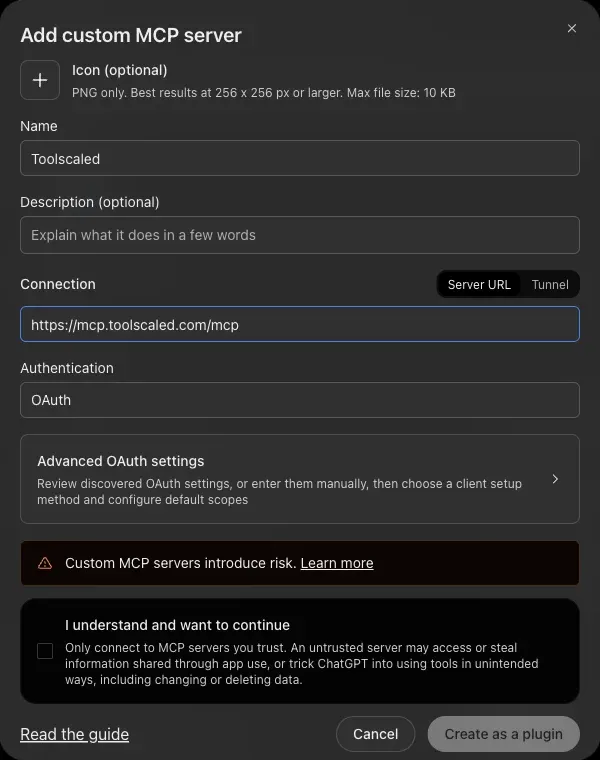
Enter the name Toolscaled and paste the connector URL as the Server URL. Keep Authentication at OAuth.
-
Check “I understand and want to continue” and select “Create as a plugin”.
-
Select “Continue to Toolscaled”.
-
Sign in to Toolscaled when the sign-in page opens.
-
On the “Approve connection” page, choose the workspace and the default toolkit.
-
Select Approve connection.
-
In a chat, select + > Toolscaled, or type @Toolscaled.
To try it, ask “What can I do with Toolscaled?” Your first workflow goes on from there.
ChatGPT plans and Codex
Section titled “ChatGPT plans and Codex”Custom MCP servers work on chatgpt.com on the Plus, Business, Enterprise and Edu plans; on Business, only admins and owners add them. Codex, in the ChatGPT desktop app, connects with the same URL and shows its own page on 127.0.0.1 after the approval.