
Stop a run, or retire a workflow
You can stop work at three sizes: one run, an automation, or a whole workflow. Each one stops only what you choose.
Cancel a run
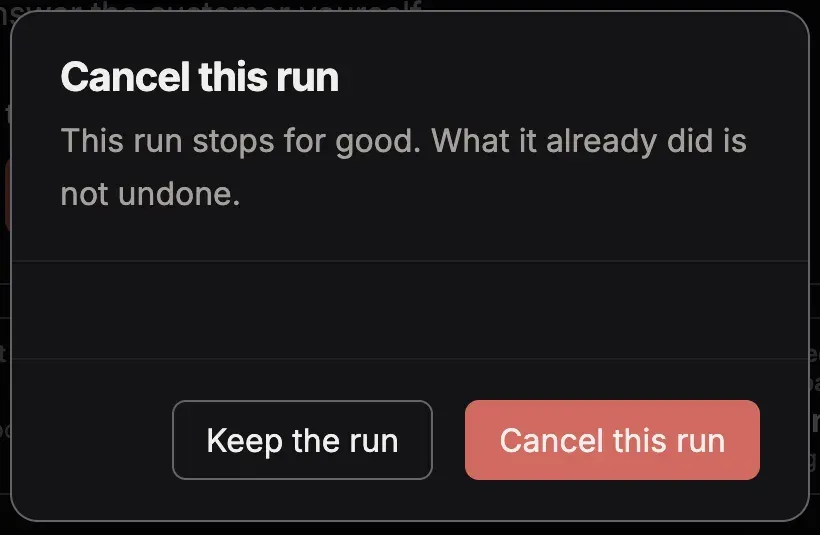
Section titled “Cancel a run”On the page of a run that is still going, choose Cancel this run in the menu More. The run stops for good. What it already did is not undone. Keep the run closes the dialog.
To cancel several runs, open the tab Runs of the workflow, choose the runs, and press Cancel selected.
A run that waits for a person stops when you press Reject and stop the run.
Stop an automation
Section titled “Stop an automation”On the page of the automation, press Pause, or choose Turn off in the menu More. The automation starts no run until you turn it on again. What starts a run says more.
Delete an archived automation
Section titled “Delete an archived automation”Only an archived automation can be deleted. An administrator or an author of the workspace can delete it.
- On the page of the automation, choose Archive in the menu More.
- Open the tab Settings of the automation. In the section Delete this automation, press Delete automation….
- Press Send the confirm email. Toolscaled emails you a link.
- Open the link within 24 hours, and press Delete automation.
Toolscaled deletes the automation at once: its versions with their rules and schedule, its record of the events it received, and its automation runs. The deletion cannot be undone.
The workflow that the automation starts stays, with its runs. The source that the automation listened to stays, with its events.
When runs of the automation are still open, wait until they end, or cancel them. Then ask for the email again.
The link works only for you, the person who asked.
Retire a workflow
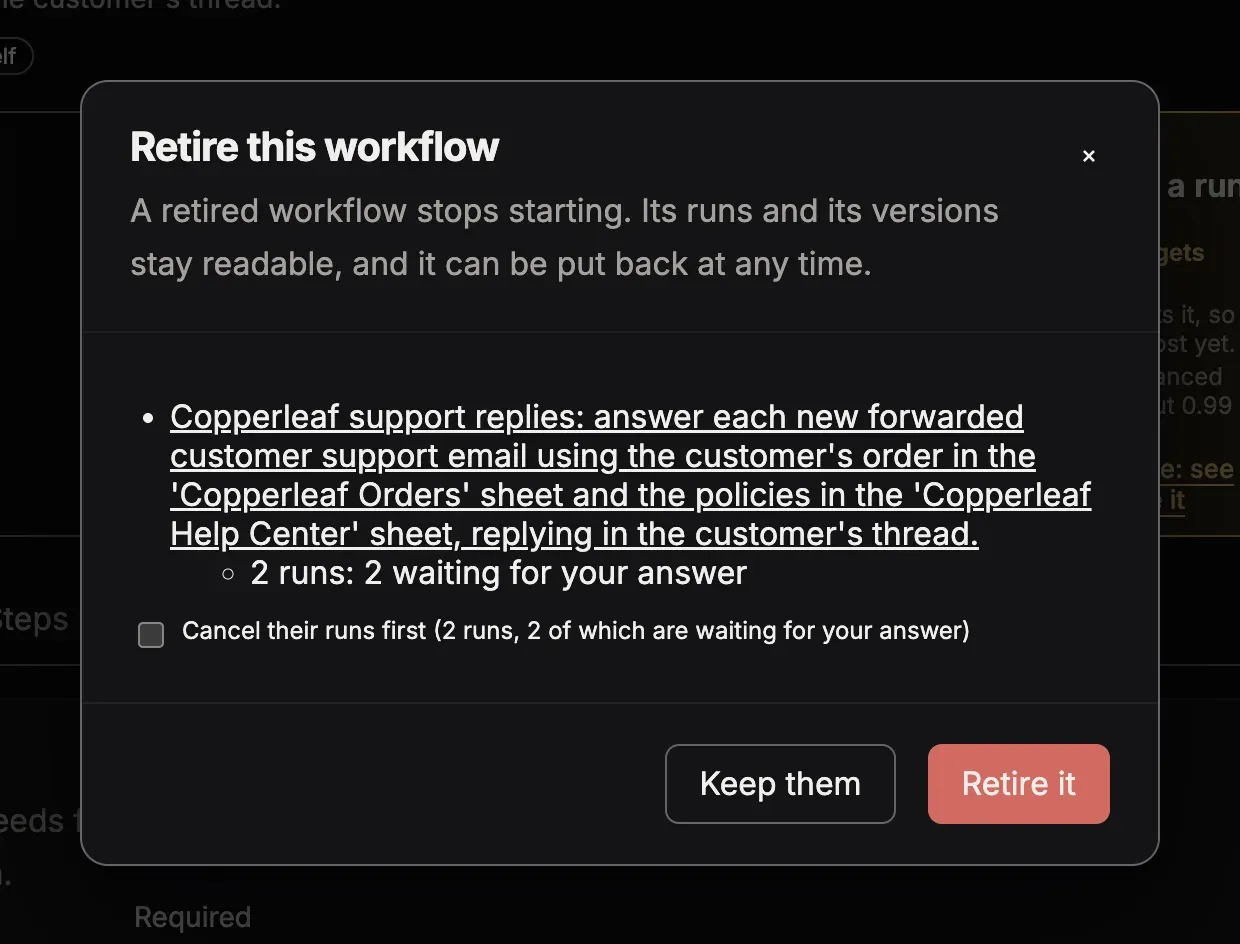
Section titled “Retire a workflow”On the page of the workflow, choose Retire workflow… in the menu More. The dialog says what stops and what stays, and it can cancel the open runs of the workflow.
Delete a retired workflow
Section titled “Delete a retired workflow”Only a retired workflow can be deleted. An administrator or an author of the workspace can delete it.
- Retire the workflow.
- Open the tab Settings of the workflow. In the card Delete this workflow, press Delete workflow….
- Press Send the confirm email. Toolscaled emails you a link.
- Open the link within 24 hours, and press Delete workflow.
Toolscaled deletes the workflow at once: its saved versions, its drafts, every run with its steps and values, and its automation runs. The deletion cannot be undone.
When an automation uses the workflow, the card names the automation. Remove the workflow from that automation, or delete the automation, then ask for the email again.
The link works only for you, the person who asked. When the workflow changes after the email, for example when you revive it and retire it again, ask for a new link on its tab Settings.
In your chat
Section titled “In your chat”Ask, for example, “Cancel the run of the Weekly summary workflow that is going now.” or “Turn off the Weekly summary automation.”