
Several workspaces, and why
One workspace is often enough. Make a second one when some of your work must stay apart from the rest.
Why more than one workspace
Section titled “Why more than one workspace”Each workspace keeps these for itself:
- its members and their roles;
- its connected accounts, keys and tools;
- its workflows, automations and runs;
- the agents that you connected to it;
- its plan, its credits and its bill;
- its default model of each level.
Make another workspace when one of these must stay apart. For example:
- a client or a team pays its own bill;
- a group of people must not reach the accounts of another group;
- you want to try workflows beside the workspace where your real work runs.
One person can be a member of several workspaces, with other roles in each.
Make another workspace
Section titled “Make another workspace”-
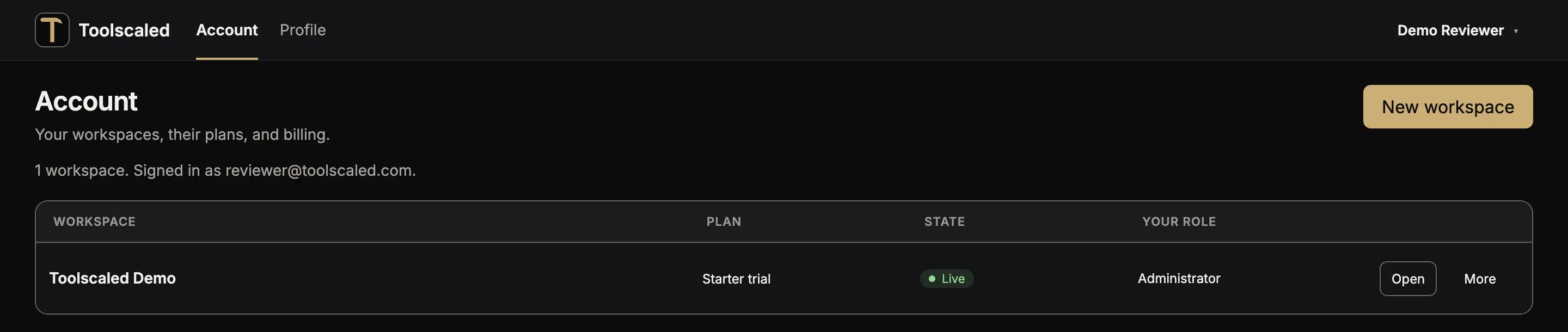
Open your menu with your name at the bottom of the left bar, and choose Workspaces. The page Account opens.
-
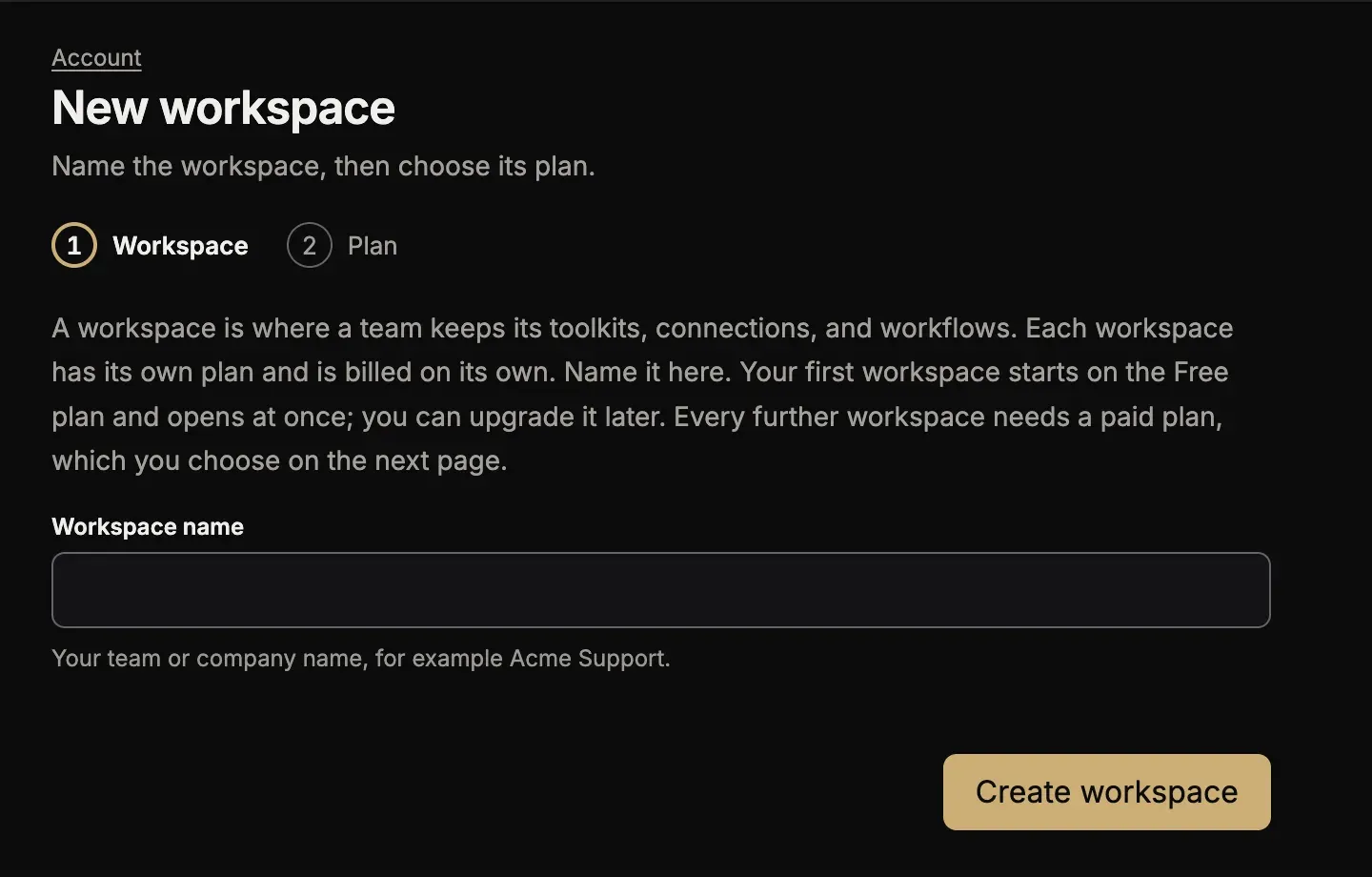
Press New workspace, type its name, and press Create workspace.
-
Choose a plan for the new workspace. Your first workspace started on Free, and each other workspace needs a paid plan.
The list on Account shows each of your workspaces, its plan, its state and your role. To move to another workspace, open the workspace menu with the name of the workspace at the top of the left bar, and choose it under Other workspaces.
A connected agent works in one workspace at a time. To move it to another of your workspaces, ask the agent to switch; see Change the workspace.