
Connect in Grok
Add Toolscaled to Grok as a custom connector, then turn it on in the chats where you want it.
-
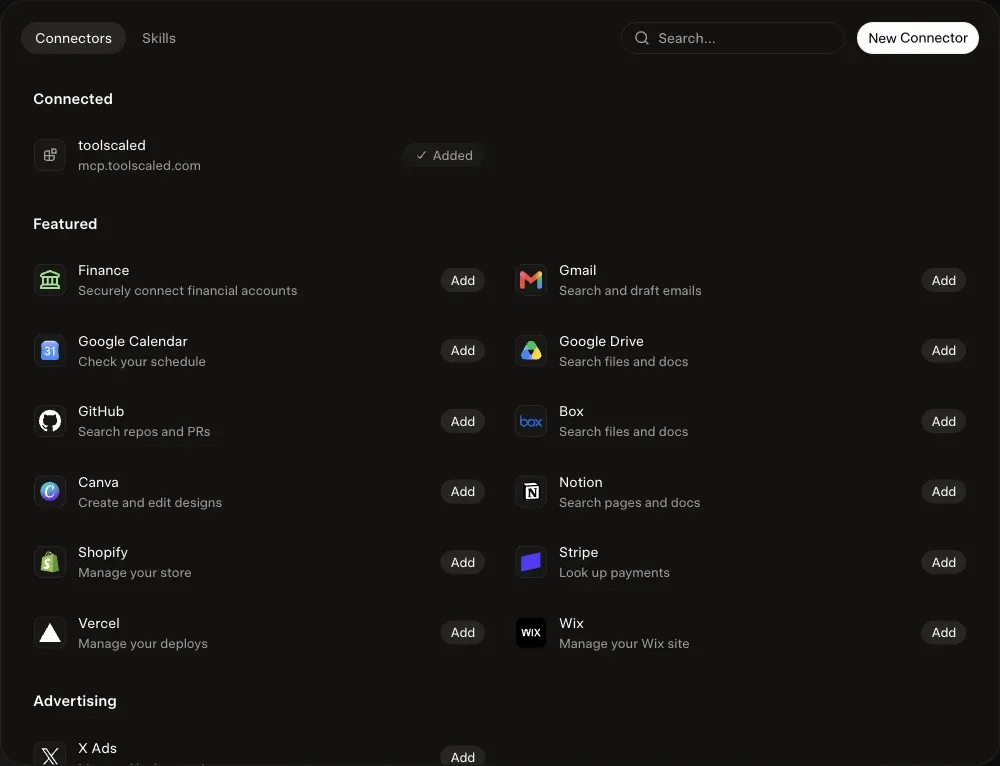
On grok.com, open grok.com/connectors and select New Connector.
-
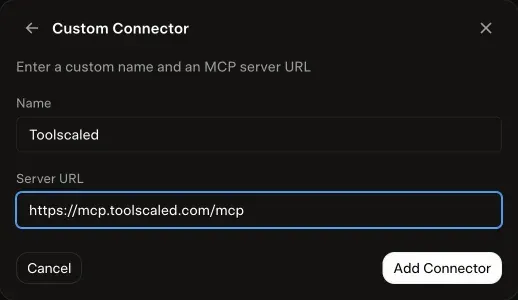
Select Custom, enter the name Toolscaled, paste the connector URL as the Server URL, and select Add Connector.
-
Sign in to Toolscaled when the sign-in page opens, choose the workspace and the default toolkit, and select Approve connection.
-
In a chat, select + > Connectors and turn on Toolscaled.
To try it, ask “What can I do with Toolscaled?” Your first workflow goes on from there.