
Is it running as scheduled?
When a workflow runs without you, these pages tell you that it ran, what it did, and when it needs you. A look at them in the first days after you turn an automation on is worth the minute.
On the list of automations
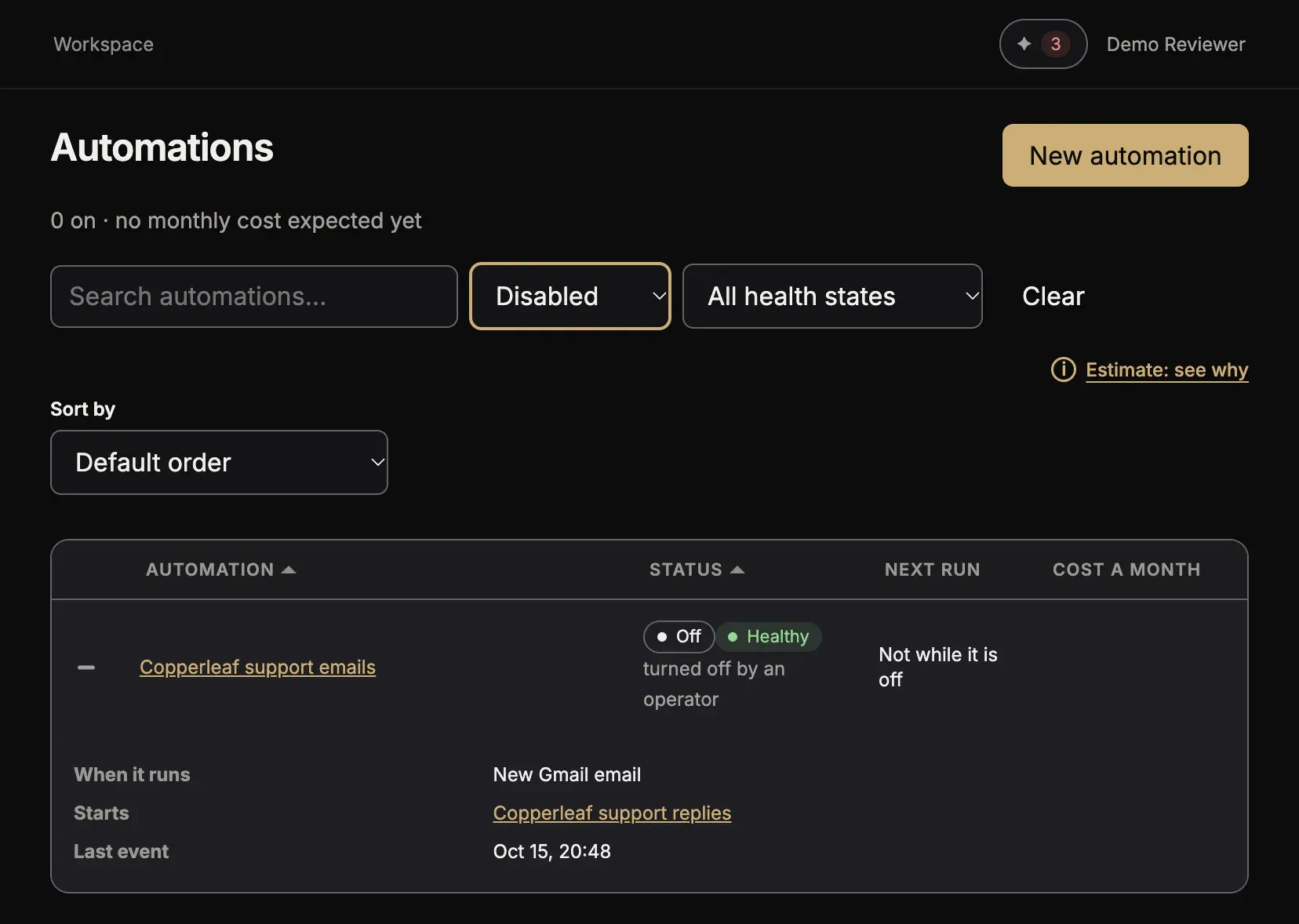
Section titled “On the list of automations”Open Automations. Each row has the parts below. When the window is narrow, press + on a row to see the parts that do not fit:
- When it runs: the schedule, or what starts it.
- Last event: the last time it started a run.
- Next run: the time of the next scheduled run. An automation that an event starts says what it waits for, for example “When an email comes”. An automation that is off says “Not while it is off”.
- The status of the automation, and its health. A health other than healthy says that the automation needs you, for example a sign-in that ended.
- Cost a month: what its runs cost in a month. What a workflow costs says how this is counted.
On the page of an automation
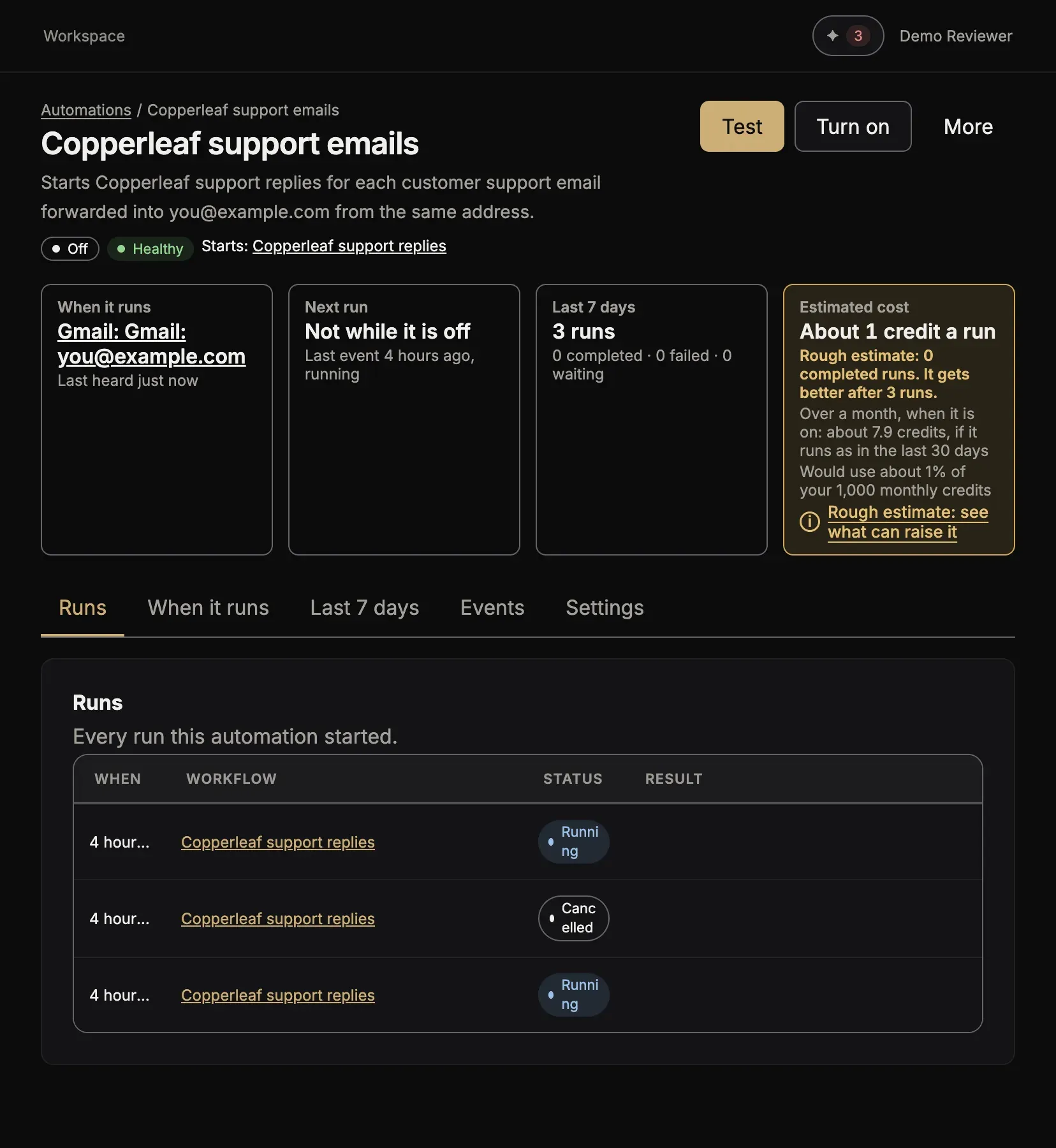
Section titled “On the page of an automation”The facts at the top are When it runs, Next run and Last 7 days. Next run says “Not while it is paused” when you paused it.
The tab Runs lists every run this automation started, with its time, its workflow, its status and its result. Open a run to see each step.
On the page of a workflow
Section titled “On the page of a workflow”The facts at the top are Last run, Next run and the runs of the last days, for example “7 of 7 completed”. The tab Runs lists all its runs, from any start.
A workflow that watches something, for example a web page, runs often and most runs find no change. Its tab Settings has the card Hide runs that found no change. When it is on, a run that ends with changed set to false in its result starts no other automation, does not show in the tab Runs or in the counts of the workflow, and is deleted after 7 days. It still counts toward your plan’s runs. The automation that starts the workflow leaves such a run out too: it is not in its tab Runs or in its Last 7 days, it sends no run email, and the automation sends nothing back for it. A run that found a change, or that failed, shows as usual. Your agent turns it on when it builds such a workflow; press Show every run to turn it off.
When a run fails
Section titled “When a run fails”A failed run shows in Action items, whatever else you choose. Approvals and Action items says more.
An automation can also send you a mail. Its tab Settings shows Run emails; to change it, press Edit this automation. Run emails has three choices:
- Never
- When a run fails (the default)
- Every run, with what it produced

When runs fail again and again, you get at most one failure mail an hour for one automation. The later failures of that hour are in Action items.
When a scheduled run does not start
Section titled “When a scheduled run does not start”Sometimes a scheduled time passes and no run starts: Toolscaled was restarting, the workspace had no plan or was paused, or the schedule reached its limit of events for the day. Toolscaled does not start that run later. It tells you instead:
- Action items shows the automation under Automations that did not run, with how many scheduled runs did not start and when the last one was.
- The people who watch runs get one notice and one mail, “A scheduled run did not start”, with the times and the reason. Misses less than an hour apart count as one group, so a long stop sends one mail, not one for each time.
- The page of the automation shows the same sentence above its facts for a week.
If the work of those times must still be done, open the workflow and press Run now.
Ask your agent
Section titled “Ask your agent”- “Show me what needs me in Toolscaled.”
- “Did the Weekly summary automation run this morning? Show me its last runs.”