
Gmail, Sheets and the other Google tools
Connect a Google account once, and your agent can work with its mail, sheets, calendar, documents, tasks, forms and the Drive files that you pick. The Google tools come with the account: when you connect it, its Gmail, Sheets, Calendar, Docs, Tasks, Forms and Drive tools are on from the start, in a group of their own. Any member who runs tools can connect an account. The account is yours: only your AI assistant can use it until you share it with everyone in the workspace.
Connect a Google account
Section titled “Connect a Google account”-
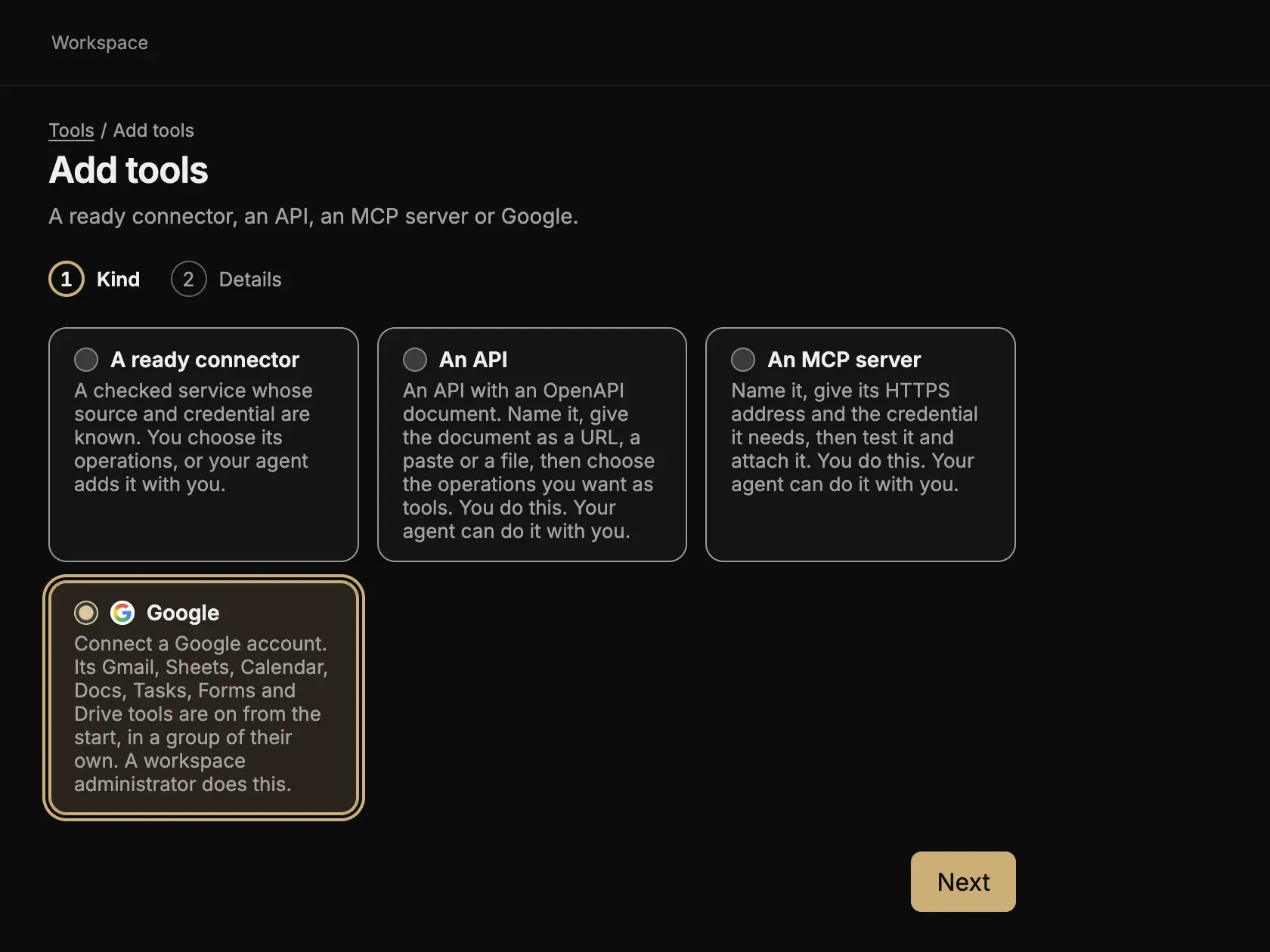
Open Tools in the left bar and select Add tools.
-
Select Google, then Next.
-
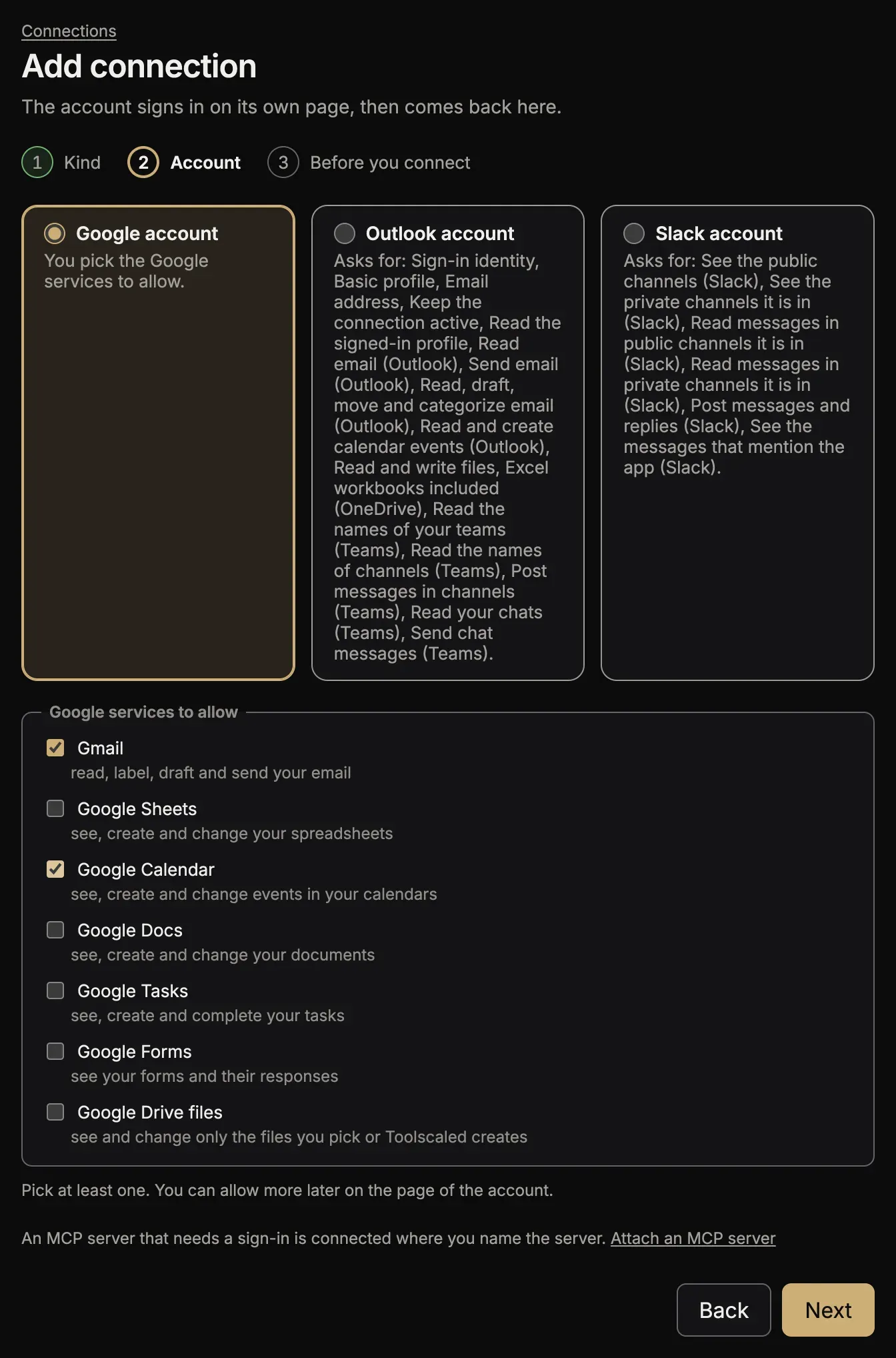
Select Connect a Google account. The page Add connection opens.
-
Select Google account. The list Google services to allow shows below the card. Tick each service that your agent may use, for example Gmail and Google Calendar. Under each service, the page says what Toolscaled may do with it. No service is ticked at first; pick at least one. You can allow more later.
-
Select Next. The step Who can use it asks who may use the account. Keep Only me, or select Everyone in this workspace so that every member’s AI assistant, and the workspace’s workflows and automations, can use it. You can change it later on the page of the account. See Share an account.
-
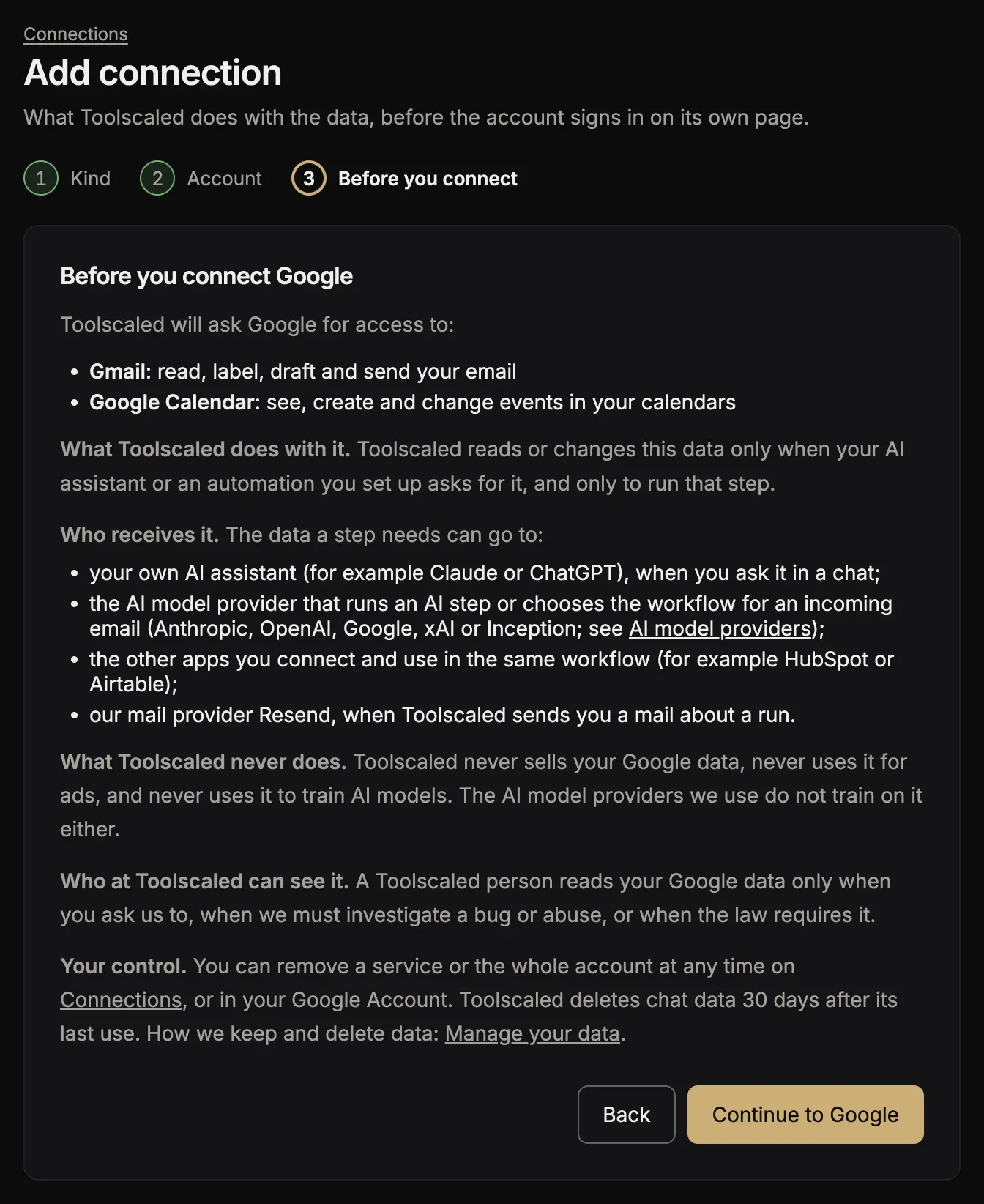
Select Next. The step Before you connect lists the services that Toolscaled asks Google for, and says what Toolscaled does with the data, who receives it, what Toolscaled never does with it, who at Toolscaled can see it, and how you remove it.
-
Read it, then select Continue to Google. Back returns to the step before. Leaving the page starts nothing.
-
On Google’s page, choose your account and allow the access.
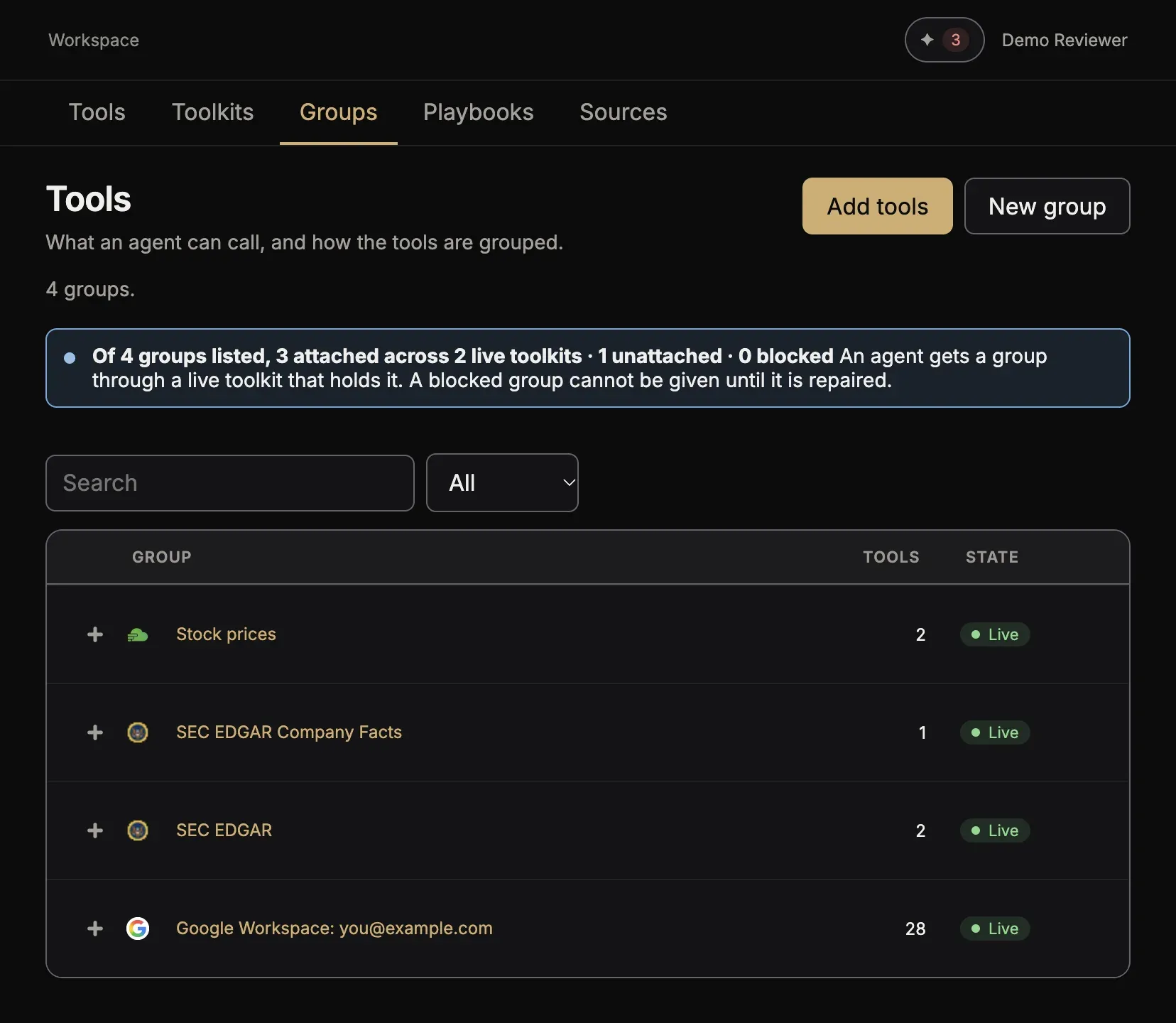
Once you allow the access, you come back to Connections, where the account is listed. The tools of the account are in a group named after the account, for example Google Workspace: you@example.com.
The Google services
Section titled “The Google services”These are the services you can pick, with the words the page shows:
- Gmail: read, label, draft and send your email
- Google Sheets: see, create and change your spreadsheets
- Google Calendar: see, create and change events in your calendars
- Google Docs: see, create and change your documents
- Google Tasks: see, create and change your tasks
- Google Forms: see your forms and their responses
- Google Drive files: see and change only the files you pick or Toolscaled creates
Toolscaled also asks for your sign-in identity and your email address, so that it knows which account it is. It asks Google for nothing else, and it sees no other file of your Drive.
The page of the account lists each service under Google services, as Allowed or Not allowed. The tools of every service stay in the group of the account. Your agent can call a tool of a service that is not allowed, and the call is refused until you allow the service.
Allow a service later
Section titled “Allow a service later”- Open Connections and select the Google account.
- Under Google services, select Allow beside the service. The page Allow Google services opens with that service ticked. The services that the account already allows show as allowed.
- Tick any other service you want, then select Next.
- Read the step Before you connect, then select Continue to Google.
- On Google’s page, allow the access for the same account.
Google adds the new services to the ones the account already has. Their tools work at once, in chats and in runs.
When your agent calls a tool of a service that the account has not allowed, it gives you a link to the same page, with the service ticked. Open the link and follow steps 3 to 5. When you come back to Connections, select Go back to return to where you were.
Reconnect a Google account
Section titled “Reconnect a Google account”When an account stops working, its page shows Reconnect Google. Select it: the page Reconnect Google opens with the services that the account allowed ticked. Select Next, read the step Before you connect, and select Continue to Google.
Any member who runs tools can reconnect an account. If you are not its owner, you become its owner when you sign in, and after the services the page asks Who can use it. See Take over an account.
You, or a workspace administrator, can disconnect the whole account on its page in Toolscaled. You can also remove the access of Toolscaled in your Google Account. Neither removes one service alone: both end the access to every service of the account.
Use the tools
Section titled “Use the tools”Ask your agent in plain words. For example:
- “Use Toolscaled to find the unread emails from my bank this week and list them.”
- “Use Toolscaled to add a row to my sheet ‘Leads’ with today’s date and the name Ana Ruiz.”
Several Google accounts
Section titled “Several Google accounts”You can connect more than one Google account. Each account gets its own group of tools. Give an account a short name (an alias) on its page, so that you and your agent can tell the tools apart.