
Connect in Claude
Add Toolscaled to Claude once, and it is there in every chat where you turn it on. Your workflows and connected tools come with it.
-
On claude.ai or in the Claude desktop app, open Customize > Connectors. If Toolscaled is on the tab Discover, select it and Connect. Otherwise select Add > “Add custom connector”.
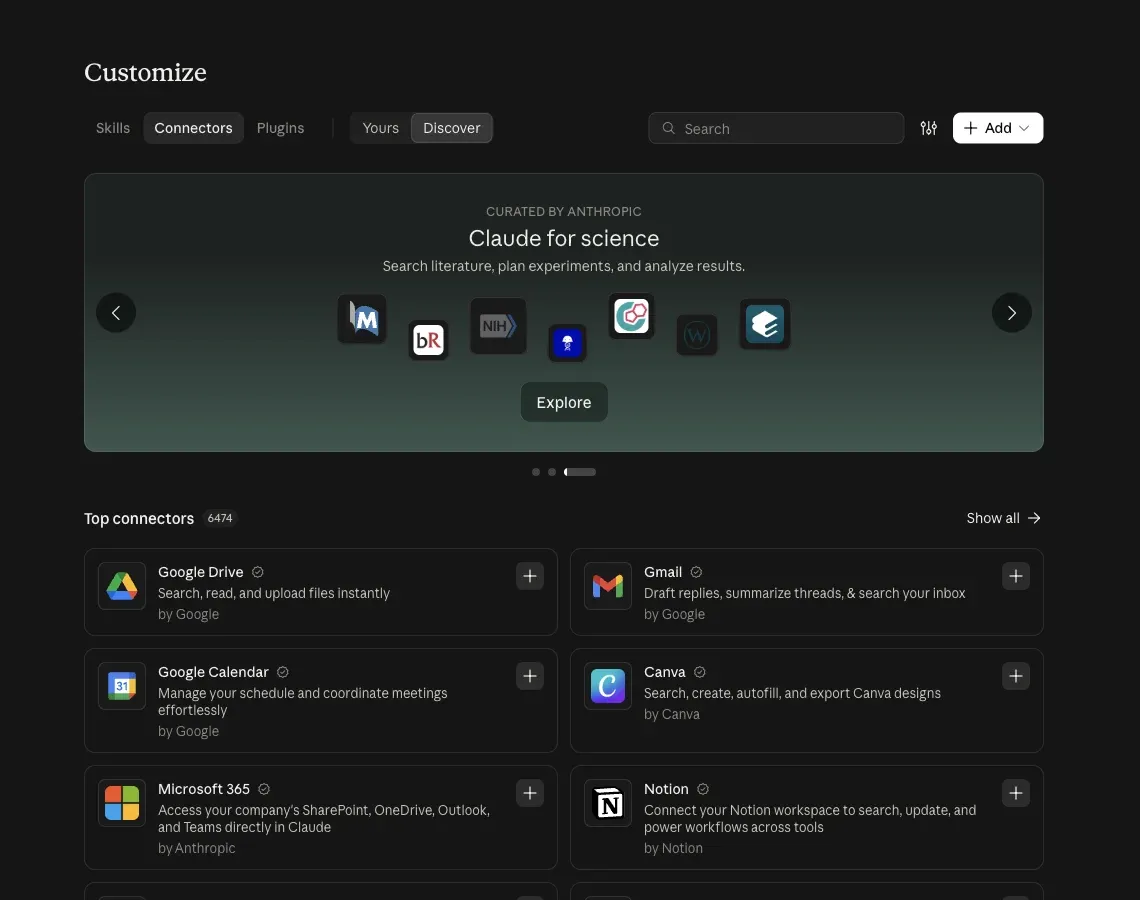
-
Enter the name Toolscaled and paste the connector URL as the MCP server URL. Select Continue, keep the sign-in settings that Claude finds, and select Add.
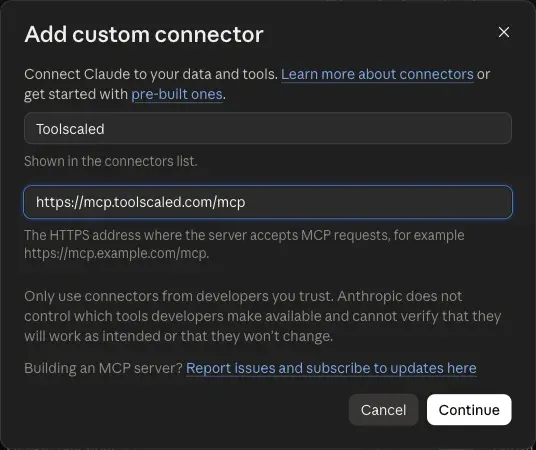
-
Sign in to Toolscaled when the sign-in page opens.
-
On the “Approve connection” page, choose the workspace and the default toolkit.
-
Select Approve connection. Claude shows Toolscaled as connected.
-
In a chat, select + > Connectors and turn on Toolscaled.
To try it, ask “What can I do with Toolscaled?” Your first workflow goes on from there.
Claude plans
Section titled “Claude plans”Every Claude plan can add a custom connector. The Free plan has room for one. On a Team or Enterprise plan, an owner of the Claude team adds the connector for everyone, and each member then selects Connect. The Claude app on a phone uses the connectors that you add on claude.ai or in the desktop app.