
Connect in Gemini
Add Toolscaled to Gemini as a custom app, then call it in a chat with @Toolscaled. This works with a personal Google account.
-
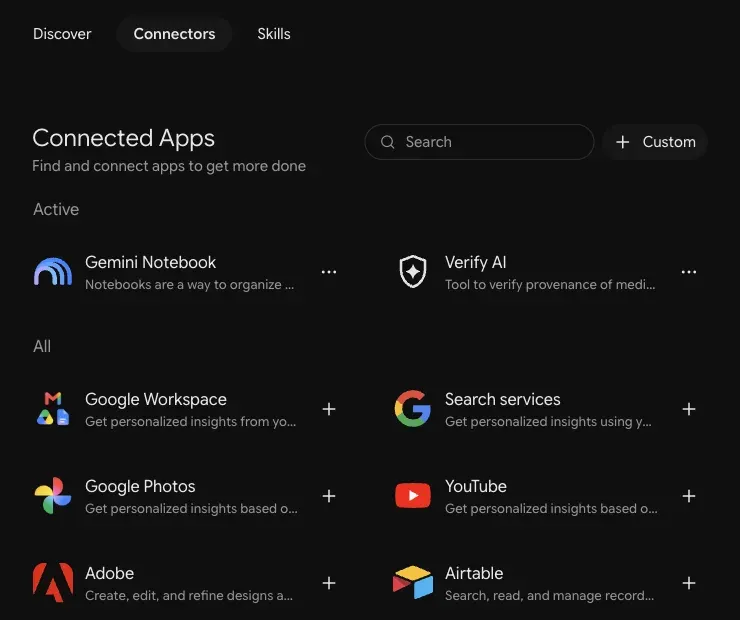
On gemini.google.com, select Customize in the left bar, open the Connectors tab, and select “+ Custom”.
-
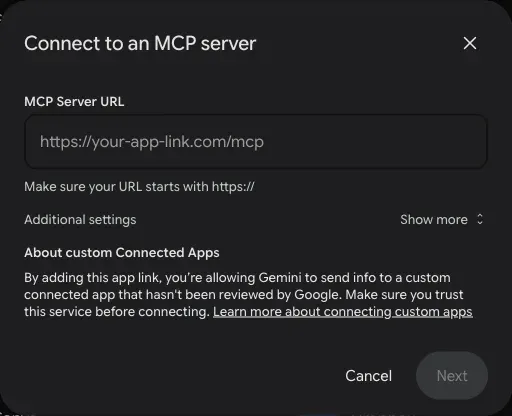
In the dialog “Connect to an MCP server”, paste the connector URL as the MCP Server URL and select Next.
-
Check “I understand and accept the security and privacy risks of connecting this custom app” and select Connect. In Google’s dialog, select “Agree and continue”.
-
Sign in to Toolscaled when the sign-in page opens, choose the workspace and the default toolkit, and select Approve connection.
-
In “Save your custom app”, keep the name Toolscaled and select Connect.
-
In a chat, type @Toolscaled.
To try it, ask “What can I do with Toolscaled?” Your first workflow goes on from there.
Google accounts
Section titled “Google accounts”Google offers custom apps for a personal Google account, not for a work or school account.