
Disconnect an account or a tool
When you no longer need an account or a tool, take it away here. Each of these acts is in the menu More at the top of the item’s page. Each one shows what stops, what stays and what you can do later, and asks you to confirm. To take an agent’s access away instead, see Disconnect an agent.
Disconnect an account
Section titled “Disconnect an account”For a Google or Outlook account. The member who connected it, or a workspace administrator, does this. To keep the account connected but stop the workflows and the other members from using it, select Stop sharing on its page instead (see Share an account).
-
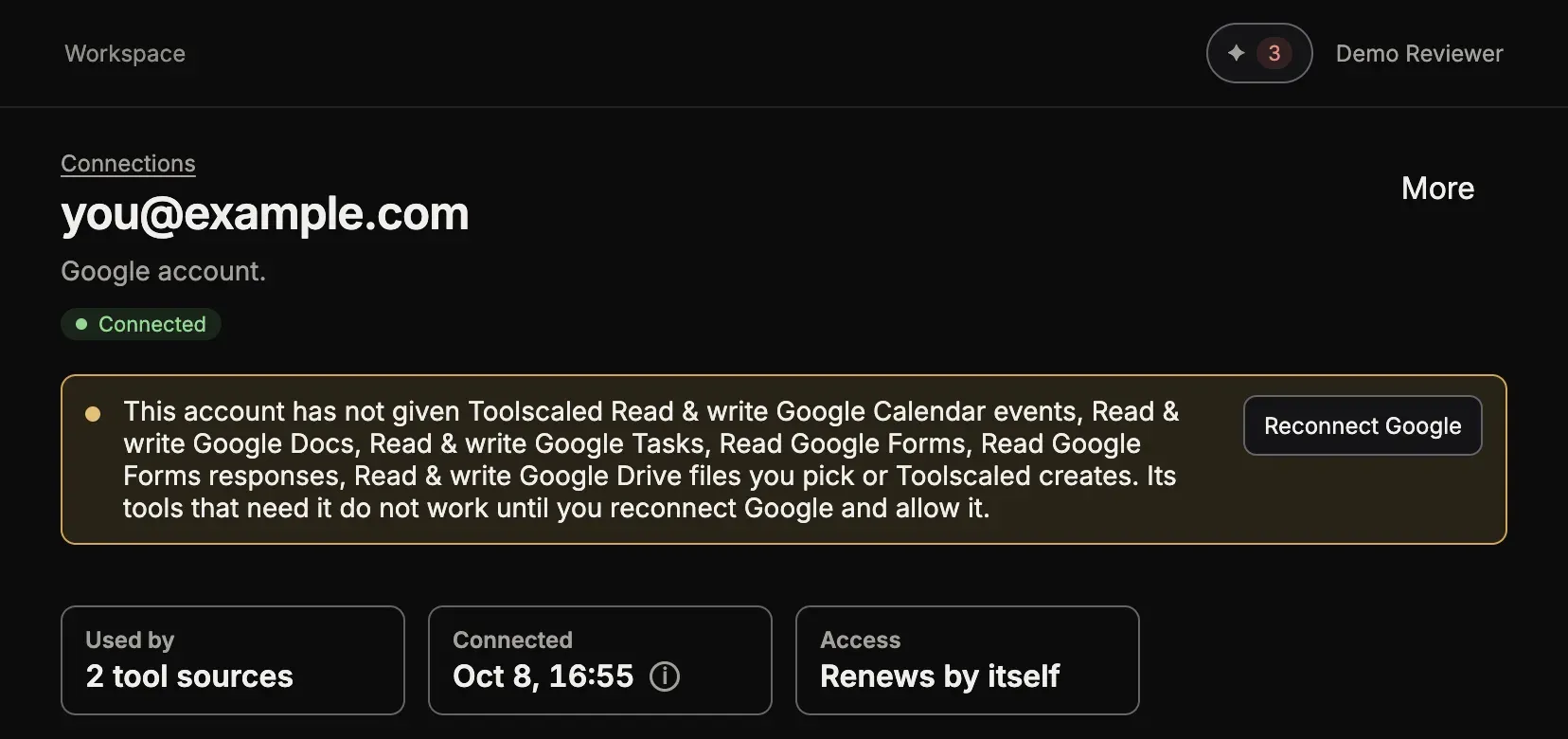
Open Connections in the left bar and open the account.
-
Select More > Disconnect account…, and confirm with Disconnect account.
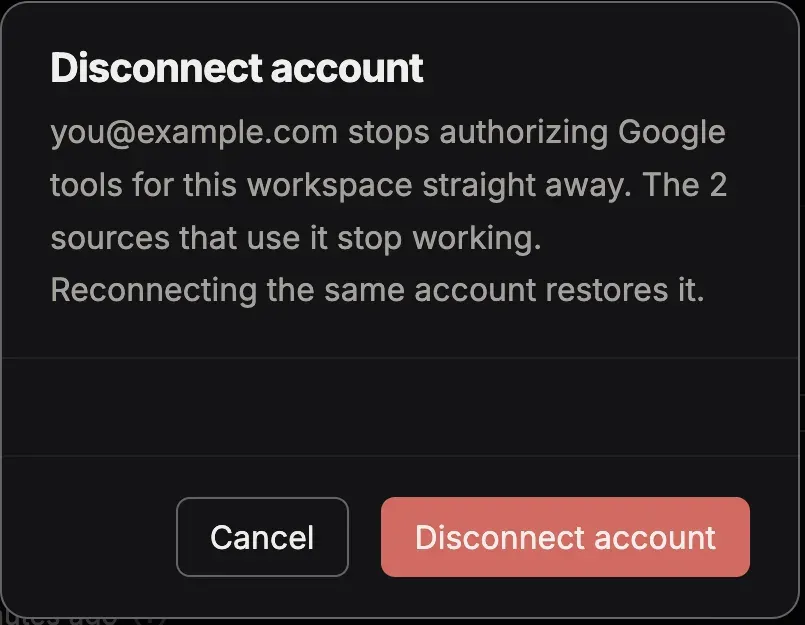
For a Google account, the dialog says that the account “stops authorizing Google tools for this workspace straight away”, and that the sources that use it stop working. Connecting the same account again restores it.
After the disconnect, More offers Remove account. A removed account disappears from the workspace for good; connecting it again creates a new one. While a tool source still uses the account, the remove is not possible.
Remove a credential
Section titled “Remove a credential”- Open Connections in the left bar and open the credential.
- Select More > Remove credential, and confirm.
Toolscaled destroys the secret. The tool sources that use it stop working until they get another credential. This cannot be undone.
Detach an MCP server
Section titled “Detach an MCP server”- Open Tools > Sources and open the MCP server.
- Select More > Detach locally…, and confirm with Detach locally.
No agent and no workflow can call the server’s tools after this. Nothing changes on the server itself: Toolscaled revokes and deletes nothing there. The source, its tools and their history stay in Toolscaled, for reading. To use the server again, attach it again as a new source.
To end the access at the service too, remove Toolscaled in the service’s own settings.
Archive an API
Section titled “Archive an API”- Open Tools > Sources and open the API.
- Select More > Archive source…, and confirm with Archive source.
No agent and no workflow can call its tools after this. The source, its tools and their history stay, for reading. To use the API again, import the document again as a new source.