
An MCP server with a token, a password or a key
Some MCP servers do not sign you in. They take a secret that you get from the service: a token, a username and a password, or a key in a header. Toolscaled keeps the secret as a credential and sends it only to the server’s host. You paste the secret on a Toolscaled page, never in your chat.
Get the secret
Section titled “Get the secret”Make the token or the key in the service’s settings, often under “API”, “Developer” or “Integrations”. Copy it. You paste it once, on a page of Toolscaled.
Attach the server on the website
Section titled “Attach the server on the website”-
Open Tools in the left bar and select Add tools.
-
Select An MCP server, then Next.
-
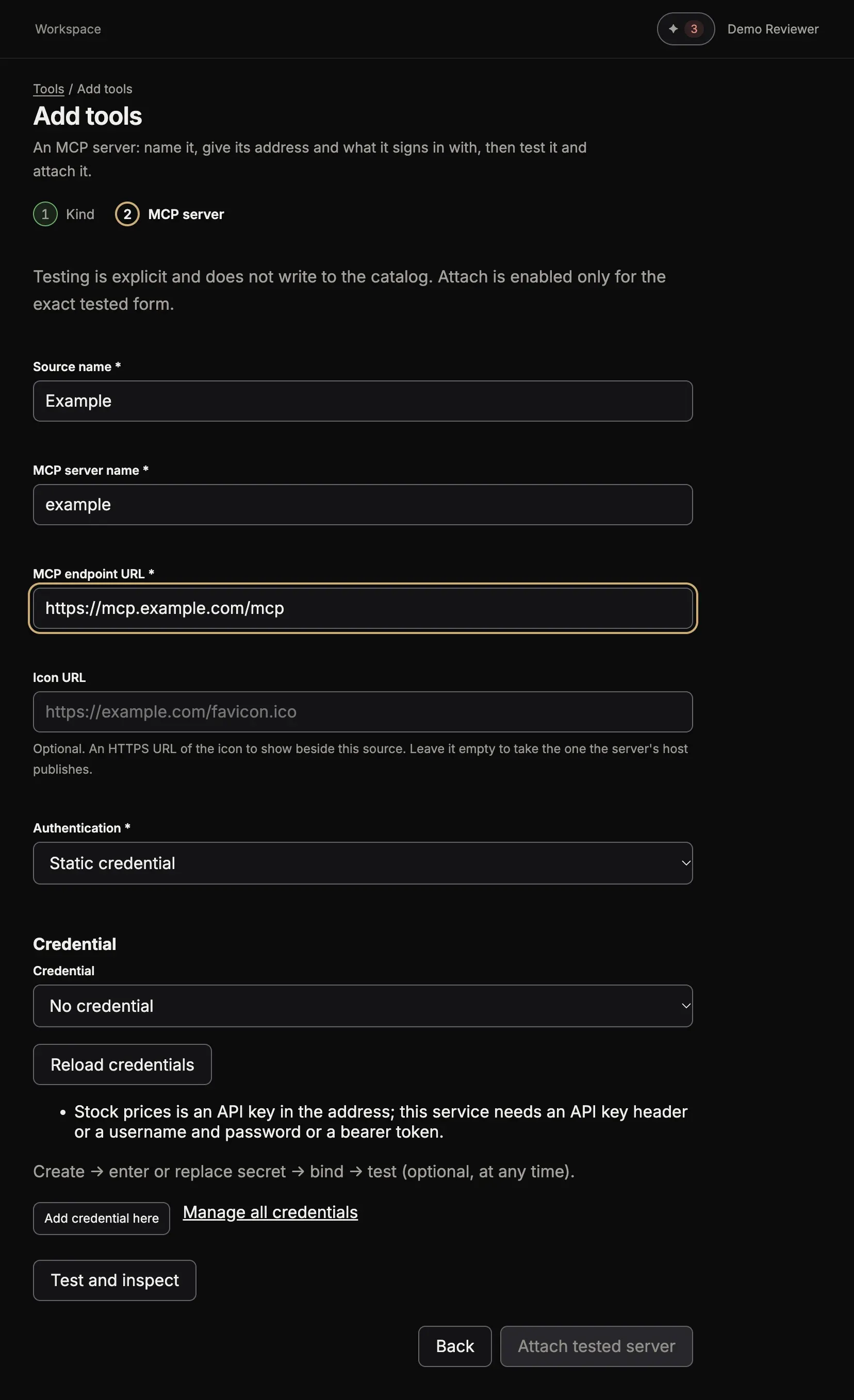
Fill in Source name, MCP server name and MCP endpoint URL.
-
For Authentication, choose Static credential. The section Credential opens.
-
Choose a saved credential in Credential, or select Add credential here:
-
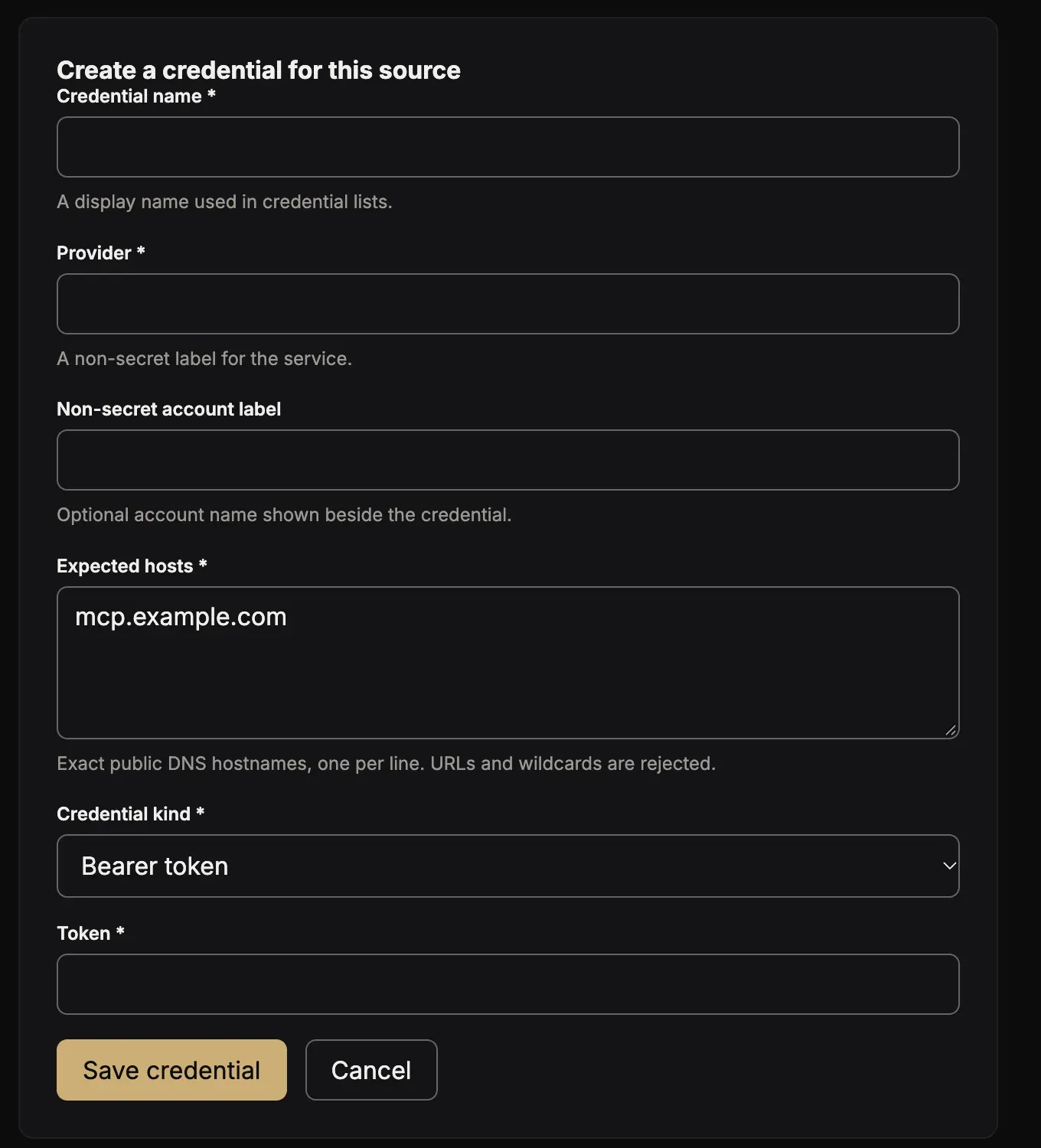
In Credential kind, choose what the service asks for:
- Bearer token: paste it in Token.
- Basic authentication: fill in Username and Password.
- API-key header: fill in Header name (the service names it, for example
X-API-Key) and paste the key in API key.
The list also has API key in the address (query parameter), but an MCP server cannot take it: see A key in the address.
-
Fill in Credential name and Provider: names that you will see in your list of credentials. Expected hosts has the host of the server’s address already: Toolscaled sends the secret only to these hosts. Then select Save credential.
-
-
Select Test and inspect. Toolscaled calls the server with the credential and lists its tools. The test adds nothing yet, so you can check the list before you commit to it.
-
Select Attach tested server.
The page of the new source opens. Its tools are in a group of their own.
Attach the server from your chat
Section titled “Attach the server from your chat”Ask your agent, for example:
Add the MCP server at https://mcp.example.com/mcp to Toolscaled. It takes a bearer token.
The agent never takes the secret in the chat. It prepares the server and gives you a link to a page with one field for the key. Paste the key there and select Save key and list tools. When the tools are listed, select Add group. From the chat, the agent can prepare a server that takes a bearer token or a key in a header. For a username and a password, use the website.
A key in the address
Section titled “A key in the address”An MCP server cannot take a key in the address (a query parameter). Only an API can: see An API with an OpenAPI document.