
An API with an OpenAPI document
When a service has an API but no MCP server, Toolscaled can still turn the operations of its API into tools. It needs the API’s OpenAPI document: a file in JSON or YAML that lists the operations. Toolscaled reads OpenAPI 3.0 and 3.1, and Swagger 2.0, which it converts. An API without such a document cannot be added.
Add an API on the website
Section titled “Add an API on the website”-
Open Tools in the left bar and select Add tools.
-
Select An API, then Next.
-
Fill in Source name.
-
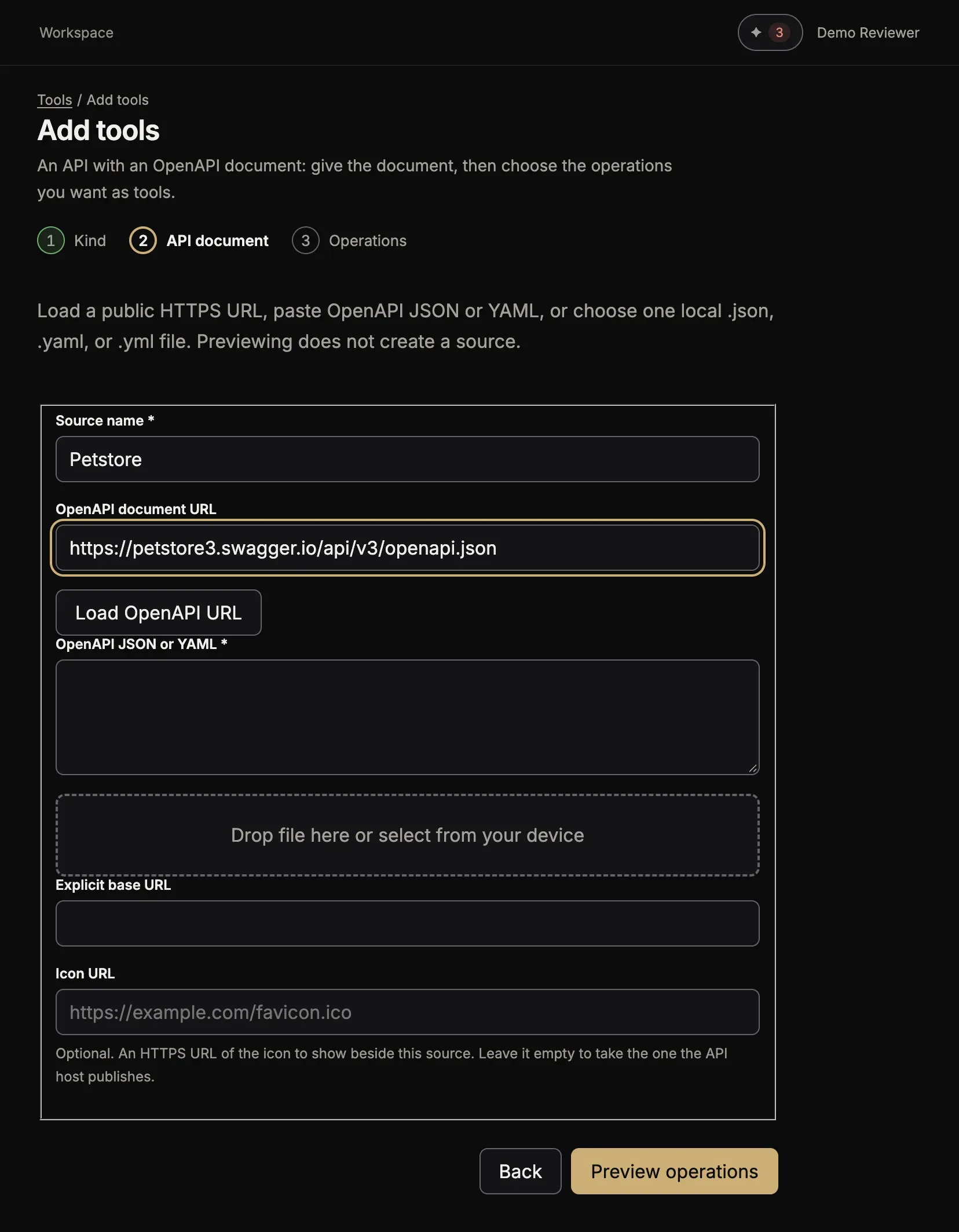
Give the document in one of three ways:
- Type its address in OpenAPI document URL and select Load OpenAPI URL. The address must be a public HTTPS address.
- Paste the document in OpenAPI JSON or YAML.
- Drop a
.json,.yamlor.ymlfile in the file box (5 MB at most).
-
Fill in Explicit base URL only when the page asks for it: some documents do not say at which address the API answers.
-
Select Preview operations. The preview adds nothing yet.
-
Choose the credential in the section Credential, if the API needs one. The page says what the API accepts. Choose a saved credential, or select Add credential here (see the kinds of credential).
-
Choose the operations that you want as tools, and select Check selected operations.
-
Select Commit source.
The tools of the chosen operations are in a group of their own. Choose only the operations that your work needs. Each tool is one more choice for your agent, and a short list helps it pick the right one.
A large API
Section titled “A large API”The page lists up to 150 operations. When a document from an address has more, the page gives you a prompt for your agent instead (Set up with your agent). Copy it into the chat: the agent reads the list of operations and chooses the ones your task needs. To choose on the page yourself, paste or upload the document.
Add an API from your chat
Section titled “Add an API from your chat”Ask your agent, for example:
Import the OpenAPI document at https://api.example.com/openapi.json into Toolscaled. Show me its operations and help me choose the ones my task needs.
The agent shows you the operations and adds the ones you choose. When the API needs a key, the agent gives you a link to a page with one field for it. Paste the key there and select Save key and add group. The agent never takes the key in the chat.