
Invite people and give them roles
Bring your team into a workspace, so that they can build, run or answer workflows with you. An administrator of the workspace adds people. Open Members in the menu of your workspace. The page has three lists: Members, Pending invitations and Join links.
A workspace on the Free plan is for one person: the person who made it. It takes no invitation and no join link, and Members shows Upgrade to Starter in place of Invite. On Starter and Enterprise you can invite people.
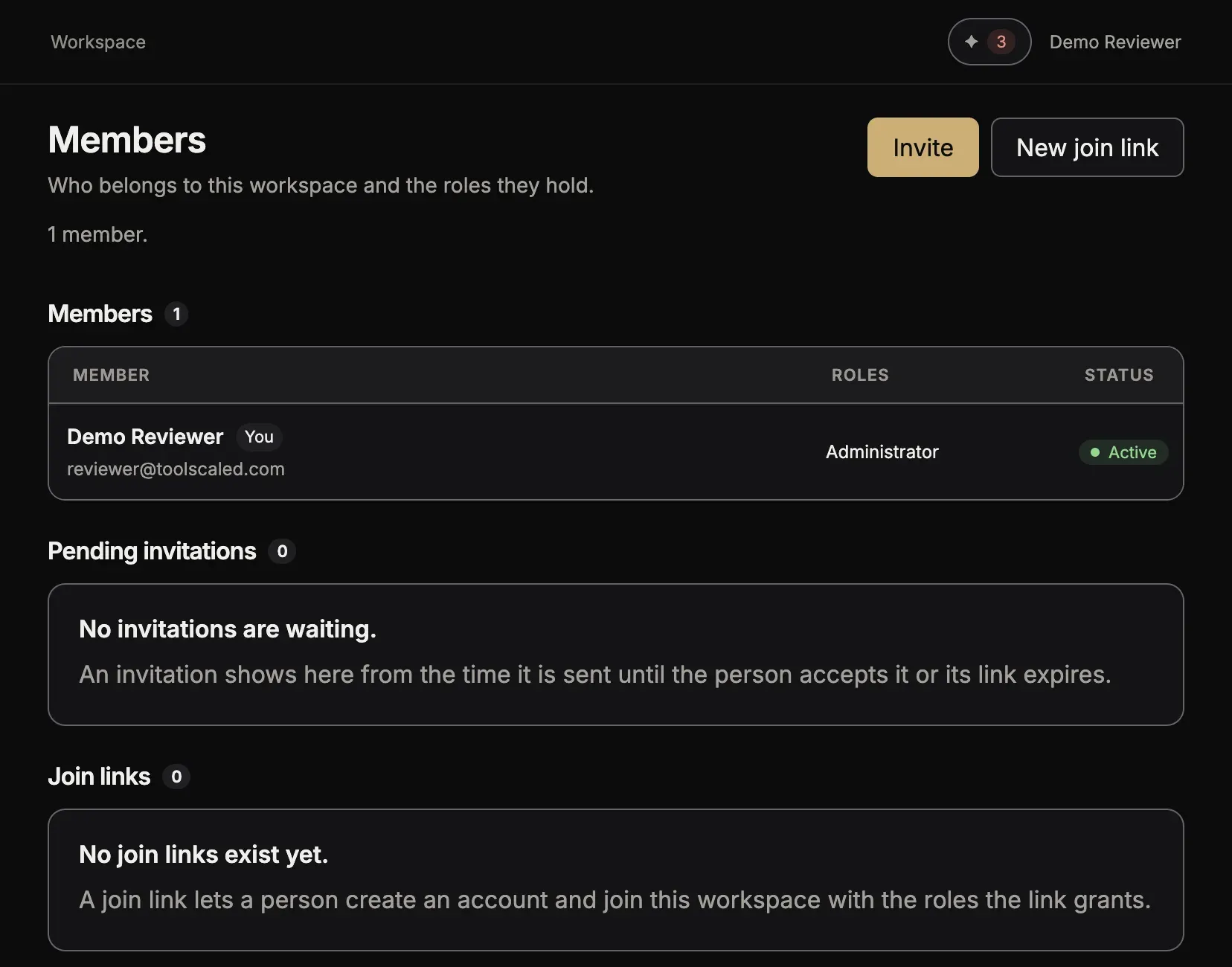
Invite one person by email
Section titled “Invite one person by email”-
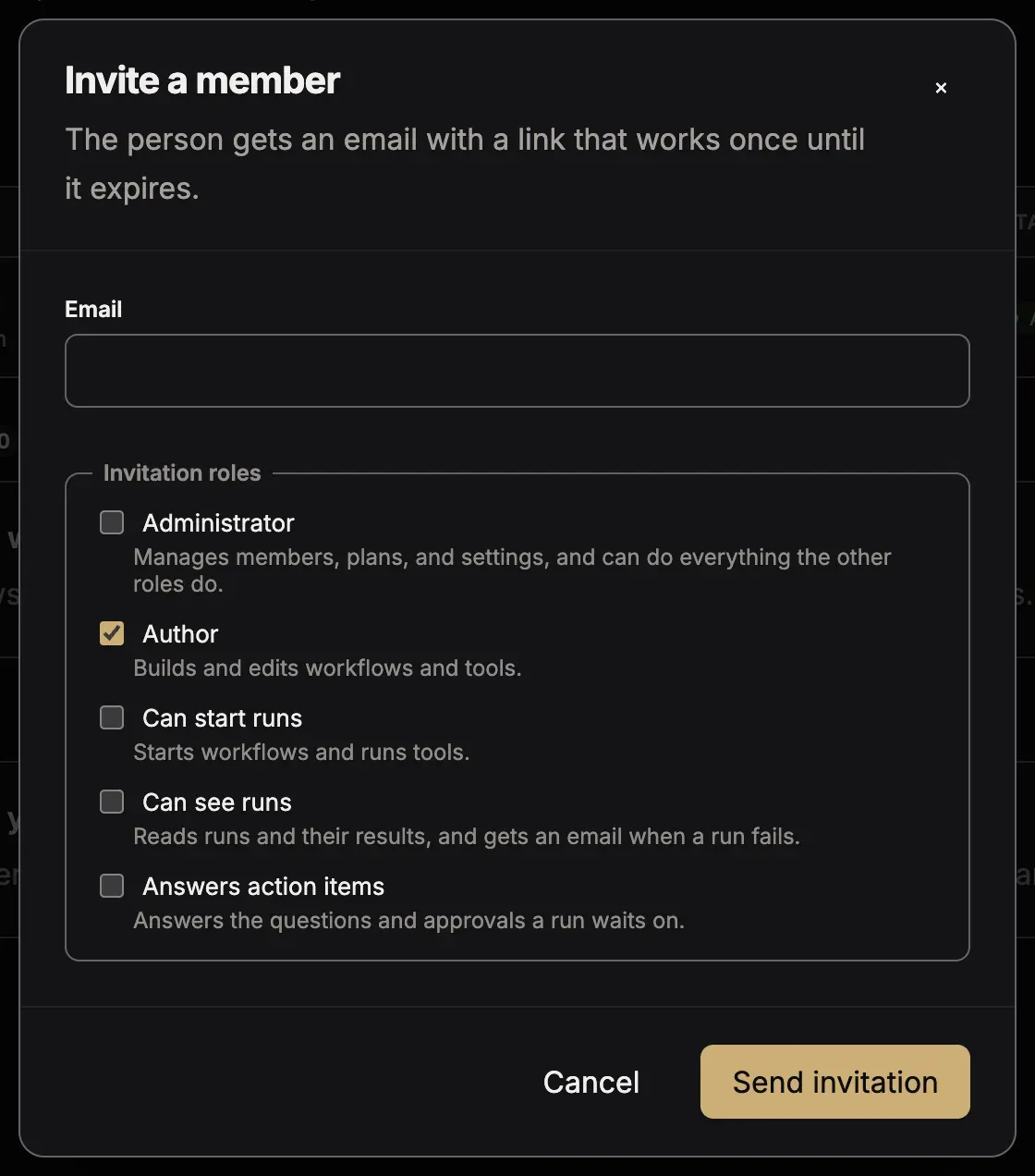
Press Invite. The dialog Invite a member opens.
-
Type the email address, and choose the roles under Invitation roles.
-
Press Send invitation.
The person gets an email with a link. The link works one time, for 7 days. The person signs in, or creates an account, and presses Join workspace. To take an invitation back, press Revoke in Pending invitations.
Give a link to a group
Section titled “Give a link to a group”-
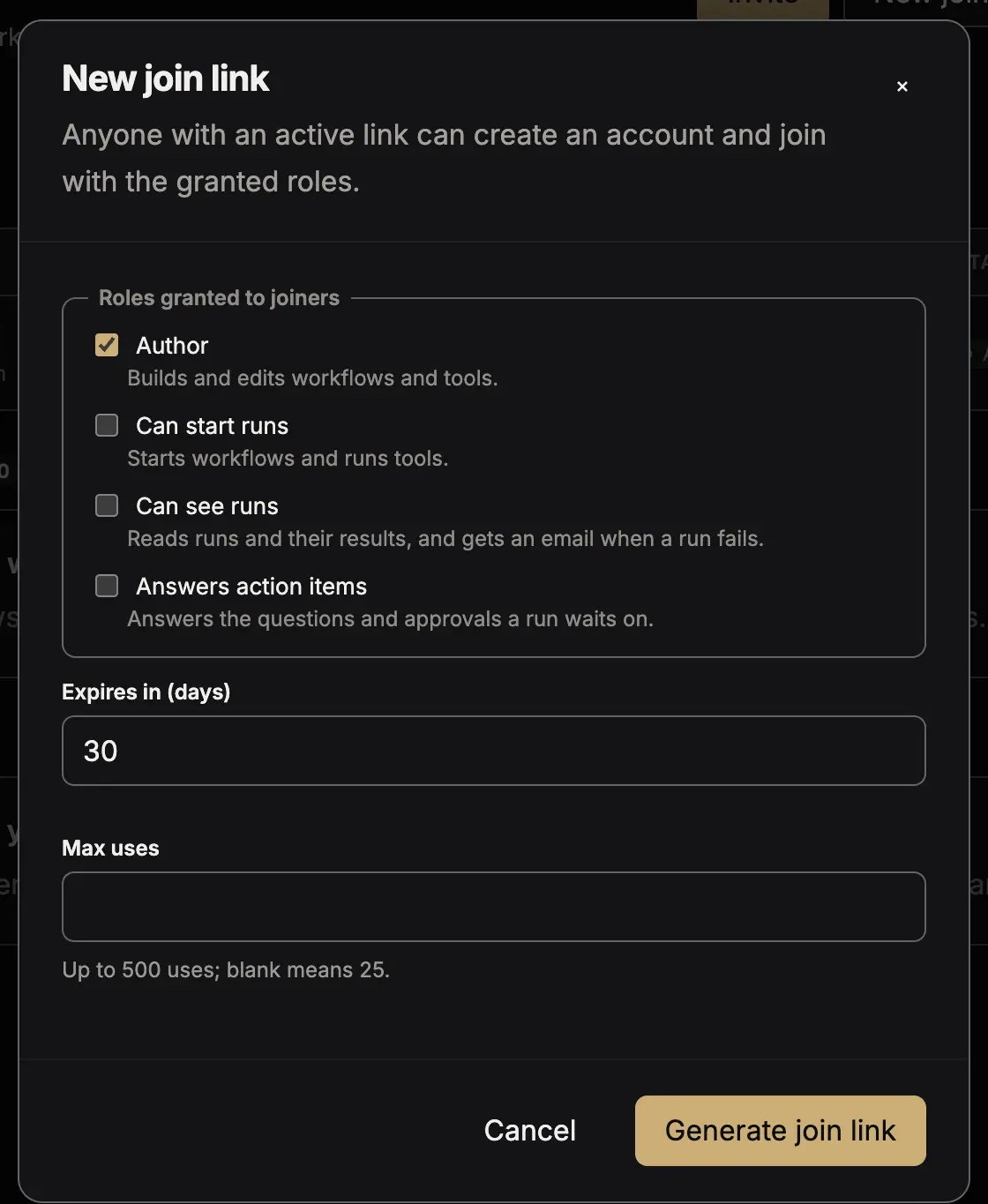
Press New join link.
-
Choose the Roles granted to joiners, the days until it ends (Expires in (days), at most 30) and the Max uses (at most 500; empty means 25).
-
Press Generate join link, and copy the link. This link is shown once.
Each person who opens the link signs in and presses Join workspace. A join link cannot make a person an administrator. Regenerate gives a new link, and Revoke link stops it.
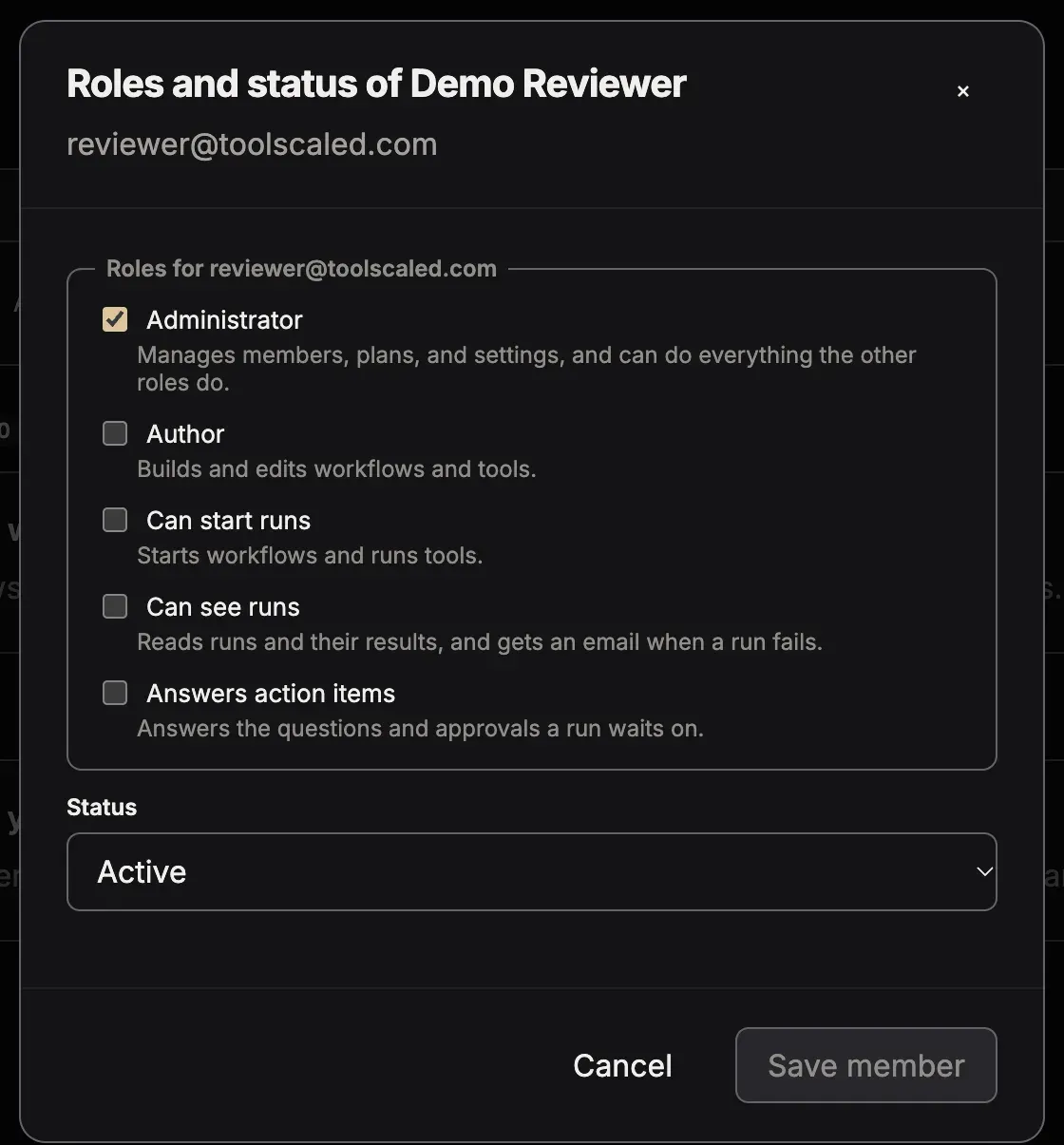
A person can have more than one role.
| Role | What the person can do |
|---|---|
| Administrator | Manages members, plans and settings, and can do everything the other roles do. |
| Author | Builds and edits workflows and tools. |
| Can start runs | Starts workflows and runs tools. |
| Can see runs | Reads runs and their results, and gets an email when a run fails. |
| Answers action items | Answers the questions and approvals a run waits on. |
To change the roles of a person, press Edit on the row. To take a person out of the workspace, press Remove. You can add a removed person again with an invitation or a join link.
Starter and Enterprise do not limit the number of members. When a workspace goes back to Free, its members stay, but nobody new can join, by an invitation or a join link.